
Generate and Deliver AI-Personalized Outreach Through Salesforce
Import contacts and leads from Salesforce campaigns or reports, let Autobound generate unique outreach for each one using 700+ buyer signals, and push the finished content directly into Salesforce custom fields -- ready for Outreach, Marketo, or any downstream system.
Scale Personalized Outreach Across Your Entire Revenue Stack with Salesforce
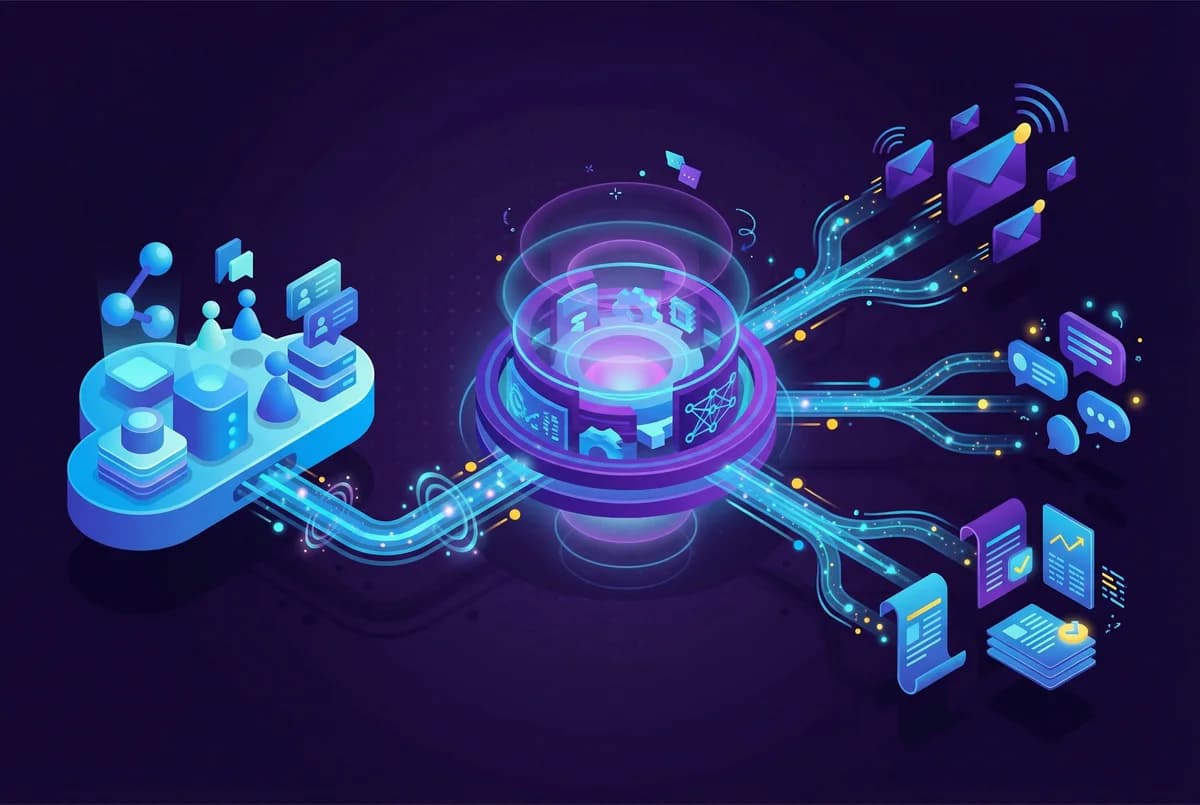
Import contacts from Salesforce campaigns, enrich them with AI-personalized content, and export to custom fields for downstream automation.
Key capabilities
What Autobound + Salesforce unlocks for your team.
Campaign & Report-Based Import
Import contacts from any Salesforce Campaign (filtered by Campaign Member status) or any tabular Report returning Contact or Lead records. Hourly continuous sync picks up new records automatically.
Contact & Lead Object Support
Work with both Contact and Lead standard objects. Autobound maps email as the unique identifier and supports optional fields like LinkedIn URL, first name, and owner email for multi-seller campaigns.
11 Custom Field Export
Push AI-generated subjects and HTML email bodies into 11 custom text area fields on the Contact or Lead object -- one campaign name field and ten content fields (Autobound Content 1 through 10).
Downstream Tool Syncing
Content written to Salesforce custom fields is instantly accessible to Outreach, Salesloft, Marketo, and any other tool that syncs with Salesforce. Use Salesforce Flow or Process Builder to trigger enrollment, tasks, or notifications when fields populate.
Multi-Org Support
Connect multiple Salesforce orgs for different business units, regions, or subsidiaries. Ideal for enterprise teams post-acquisition or agencies managing separate client instances.
Email-to-Salesforce BCC Logging
Copy your BCC address from Salesforce Settings and paste it into Autobound's Gmail or Outlook integration. Every sent email is automatically logged as an activity on the corresponding Contact or Lead record for full attribution.
How it works
Get up and running with Salesforce in 4 simple steps.
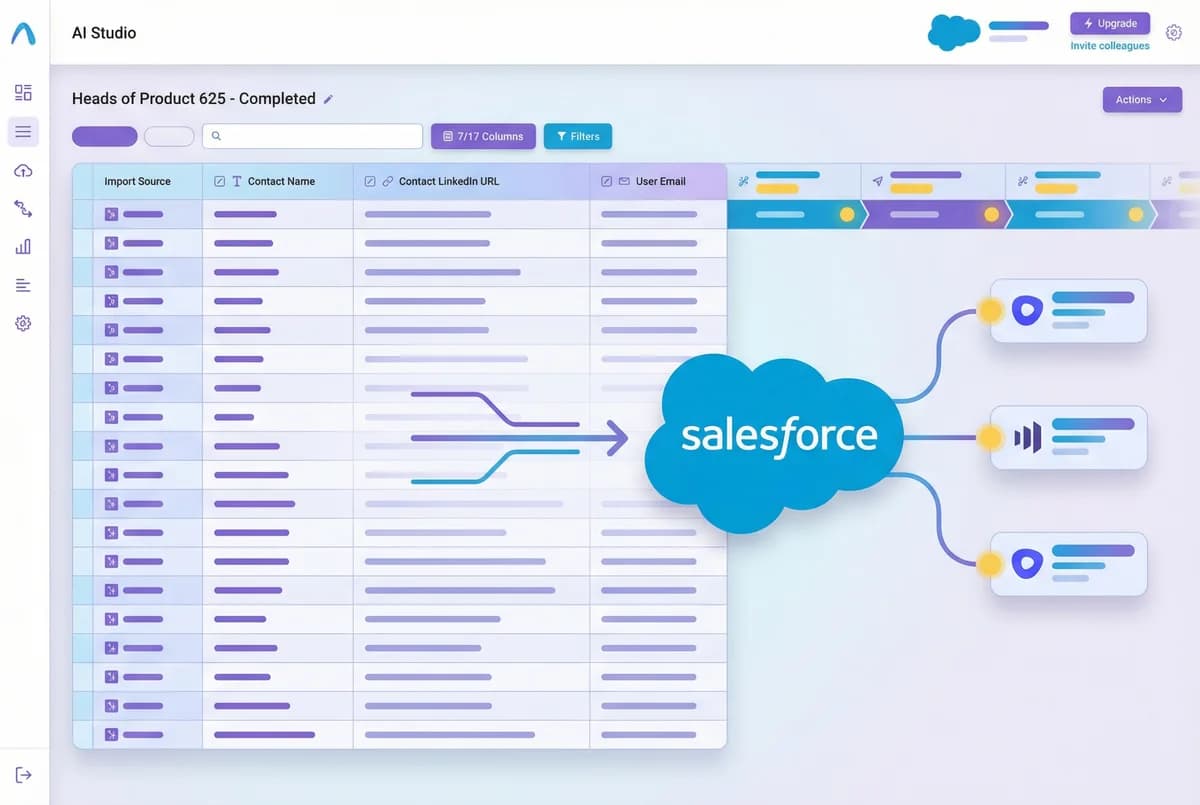
Import from Salesforce
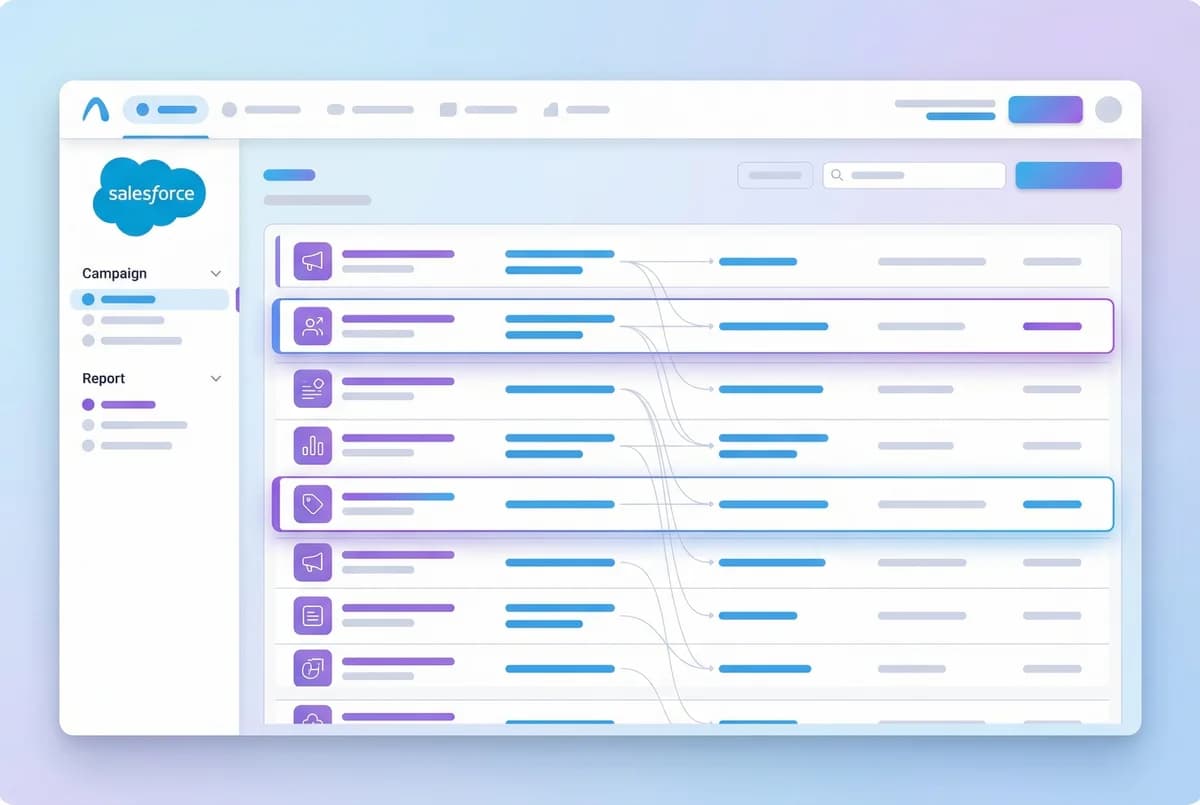
Connect your Salesforce org to AI Studio via OAuth and select your contact source -- any Salesforce Campaign (by Campaign Member status) or Report (any tabular report returning Contact or Lead records). Autobound maps the email field as the unique identifier, plus optional fields like LinkedIn URL, first name, and contact/lead owner email for multi-seller campaigns.
Autobound supports multiple Salesforce authentications, making it ideal for agencies managing different client instances or enterprises with regional orgs. Toggle continuous import for automatic hourly syncing of new Campaign Members or Report rows.
Generate Personalized Content at Scale
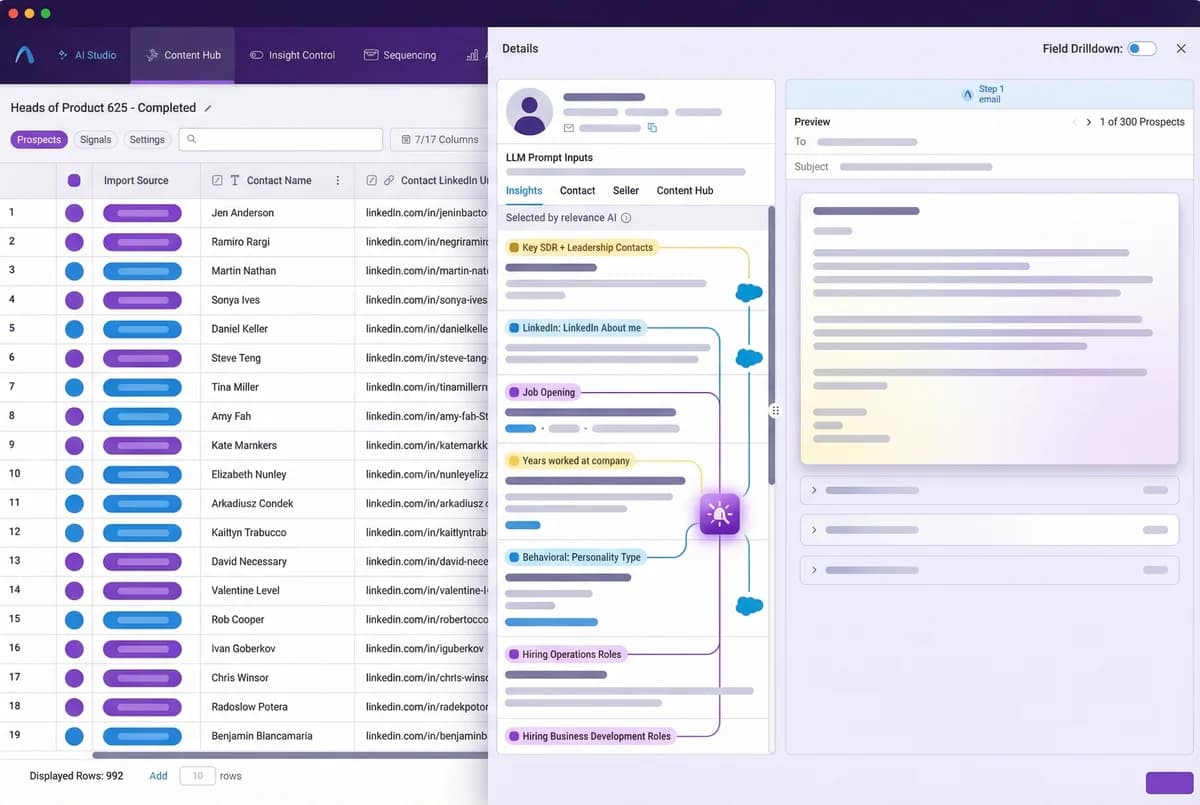
Autobound's AI engine goes beyond the data in Salesforce. For each imported contact, it researches 700+ real-time buyer signals -- 10-K filings, funding rounds, executive moves, hiring trends, tech stack changes, product launches, earnings calls, and more. It then generates fully written emails, LinkedIn messages, and call scripts that reference what actually matters to that specific buyer right now.
Salesforce data (Account details, Opportunity stage, Activity history) enriches the signal set, so your CRM context is woven into every message alongside external intelligence. Content Hub auto-selects the right value proposition for each prospect based on their signal profile.
Export to Salesforce Custom Fields
Create 11 custom Text Area fields on your Contact or Lead objects -- one "Autobound Campaign Name" field and ten content fields ("Autobound Content 1" through "Autobound Content 10"). Autobound pushes AI-generated subjects and HTML bodies into these fields, making personalized content accessible to any downstream system that syncs with Salesforce.
Outreach sequences reference content via {autobound_content_1} variables. Salesloft cadences and Marketo programs can read the same fields. Salesforce Flow or Process Builder triggers fire when fields populate, enabling fully automated enrollment into sequences, task creation, or Slack notifications.
Track and Automate End-to-End
Set up Email-to-Salesforce by copying your BCC address from Profile > Settings > My Email to Salesforce, and enabling "Automatically assign them to related Salesforce records" -- this ensures logged emails associate with the correct Account, Contact, or Lead. Paste the BCC address into your Gmail or Outlook integration settings in Autobound.
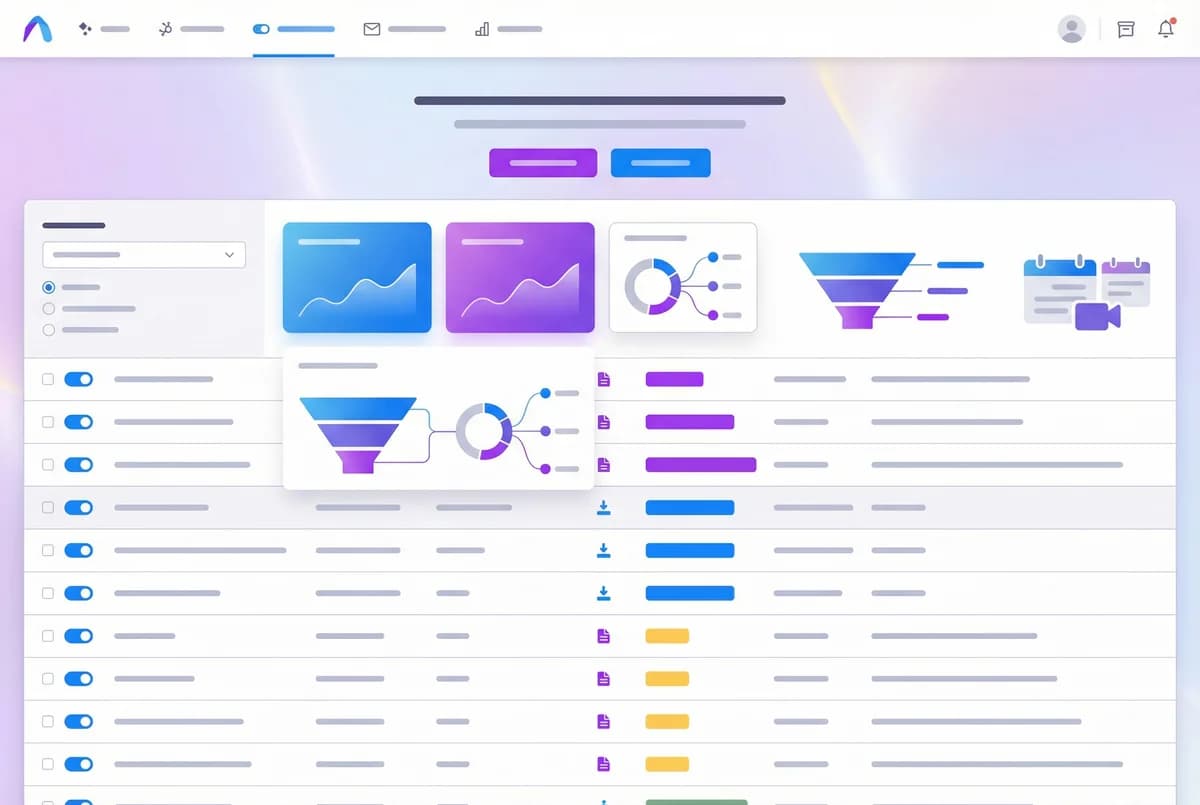
Every email sent through AI Studio is automatically recorded as an activity on the Contact or Lead record. Build Salesforce reports to track AI-generated outreach volume, reply rates, and pipeline influenced. Use Run Conditions to control exactly which contacts receive exports -- for example, only push content when Lead Score exceeds a threshold or when LinkedIn URL is populated.
Why Salesforce Teams Need AI Personalization at the CRM Layer
Most sales teams generate outreach outside of Salesforce -- in point solutions, Chrome extensions, or standalone AI tools. The result is fragmented data, inconsistent messaging, and zero visibility for ops and leadership. When personalized content lives outside the CRM, it cannot be tracked, automated, or scaled.
Autobound's Salesforce integration puts AI-generated content directly onto Salesforce records. This means your entire revenue stack -- Outreach, Salesloft, Marketo, Pardot, Salesforce Engage, or custom systems -- can access personalized content through the fields they already read. Your CRM becomes the distribution hub for AI-powered outreach, not a silo sitting next to it.
How the Integration Works
The integration runs through AI Studio, Autobound's campaign platform:
Connect: Authenticate your Salesforce org via OAuth. Enterprise teams can connect multiple orgs for different business units, regions, or subsidiaries.
Import: Select a Salesforce Campaign (by Campaign Member status) or a Report (any tabular report returning Contact or Lead records) as your source. Autobound maps standard and custom fields. Hourly sync picks up new records automatically.
Generate: For each contact, Autobound researches 700+ real-time signals and generates unique outreach content. Account data, Opportunity context, and Activity history from Salesforce enrich the signal set. Content types include emails, multi-step sequences, LinkedIn messages, and call scripts.
Export: Finished content populates custom fields on the Contact or Lead object. Salesforce Flow or Process Builder can trigger downstream actions when fields are populated -- enrolling contacts in Outreach sequences, creating follow-up tasks, or notifying reps via Slack.
Track: Email-to-Salesforce BCC logging records sent emails. Salesforce reports provide ROI tracking and pipeline attribution.
Enterprise Architecture: Salesforce as the Content Distribution Hub
For enterprise teams running Salesforce alongside multiple sales engagement platforms, Autobound turns Salesforce into a centralized content layer. Generate content once in AI Studio, push it to Salesforce custom fields, and let each downstream tool -- Outreach, Salesloft, Marketo, or home-grown systems -- pull from those fields using their native Salesforce sync.
This architecture means your AI personalization investment scales across every tool in the stack without building separate integrations for each. It also gives your ops team a single point of control: manage field mappings, workflow triggers, and content routing in Salesforce, where they already have expertise.
Multi-org deployments are fully supported. Teams operating across multiple Salesforce instances (common in enterprises post-acquisition or with regional orgs) can connect each org separately and run campaigns from any of them.
Frequently asked questions
Which Salesforce editions are compatible with the Autobound integration?
The integration works with any Salesforce edition that supports OAuth connected apps and custom fields on Contact or Lead objects -- this includes Professional, Enterprise, Unlimited, and Developer editions. Salesforce Essentials does not support custom fields on standard objects, so it is not compatible. For workflow-triggered automation (auto-enrolling contacts into sequences when Autobound populates fields), you need Enterprise edition or higher with Salesforce Flow or Process Builder access.
How does importing from a Campaign differ from importing from a Report?
Campaign import pulls Campaign Members from a specific Salesforce Campaign. You can filter by Campaign Member status (e.g., only "Sent" or "Responded" members). This is ideal when your marketing team already segments audiences into campaigns.
Report import pulls rows from any tabular Salesforce Report that returns Contact or Lead records. This gives you more flexibility -- you can use report filters, cross-object criteria, and custom logic to define exactly which records Autobound should process. Both methods support continuous hourly sync for automatic pickup of new records.
Can I use both Contact and Lead objects in the same campaign?
Each Autobound campaign targets a single Salesforce object type -- either Contacts or Leads -- because the custom export fields must be created on one object. However, you can run separate campaigns for Contacts and Leads simultaneously. If your Salesforce org uses a mixed model, create one campaign importing from a Contact-based source and another from a Lead-based source, each with its own set of custom fields.
How does downstream tool syncing work with Outreach, Salesloft, and Marketo?
Autobound writes AI-generated content to custom fields on your Salesforce Contact or Lead records. Any downstream tool that has a native Salesforce sync -- Outreach, Salesloft, Marketo, Pardot, or custom systems -- can read those fields using its standard field mapping. For example, Outreach sequences reference the content via {{autobound_content_1}} variables, Salesloft cadences pull from the same mapped fields, and Marketo programs can use the fields in email tokens or smart list filters. No separate integration with each tool is required -- Salesforce acts as the content distribution hub.
How do I configure Email-to-Salesforce BCC logging?
Navigate to your Salesforce Profile > Settings > My Email to Salesforce and copy your unique BCC email address. Enable the option "Automatically assign them to related Salesforce records" so logged emails are associated with the correct Account, Contact, or Lead. Then paste the BCC address into Autobound's Gmail or Outlook integration settings. From that point on, every email sent through AI Studio is automatically recorded as an activity on the relevant Salesforce record, giving your team full visibility into AI-generated outreach without any manual data entry.
Other integrations
Autobound works across your entire sales stack.
HubSpot
Pull contacts from HubSpot lists, generate AI-personalized outreach at scale, and push content back into HubSpot custom fields for automated sequencing.

Generate AI-personalized InMails and connection requests from any LinkedIn profile with the Chrome Extension, or create bulk LinkedIn content at scale with AI Studio. Autobound generates the content -- you send it.

Gmail
Build multi-step AI-personalized sequences that send directly from Gmail. Autopilot for scale, Copilot for control, Chrome extension for ad-hoc.
Use Cases
See how teams use Autobound
From autopiloted SDRs to enterprise copilots -- explore real workflows.
Platform
Explore the platform
Signal Engine, Insights Engine, Content Hub -- see the full product.
Success Stories
Real results from real teams
See how companies are driving replies, meetings, and revenue.
Related Articles
Nobody Lies to r/sysadmin: Reddit Is Now a B2B Signal Source
Autobound now mines 500+ hand-vetted business communities for 15 types of B2B signal: buying intent, pricing revolts,...
Patents are a buying signal. We rebuilt ours from the string up.
A relaunched patent signal feed: four subtypes, an entity-resolution engine that turns raw assignee strings and inven...
What's New at Autobound Signal API: Fall 2026
Real, typed buying signals from 12,000 podcast episodes a day and 5,400 conference agendas a year, with the executive...
Explore signal data
35+ data sources. 250M+ contacts. Custom configurations for your use case.